QuickStart
Introduction
The Eclipse SDV Blueprints project is a collaborative initiative led by Eclipse SDV members to bring the "software defined vehicle" concepts to life. A crucial aspect of each blueprint is to ensure users can easily reproduce it on their own. This requires well-written and highly clear documentation. Users can utilize blueprints as they are, for inspiration, or as a foundation to customize and meet their specific needs.
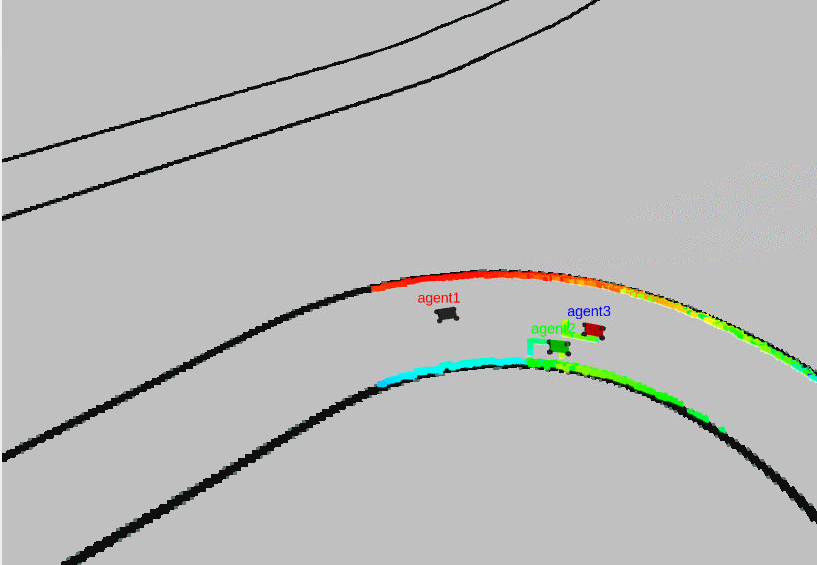
ROS Racer Blueprint is a ROS-based showcase where multi-agent autonomous racers running F1TENTH software are orchestrated and managed by an Eclipse SDV software stack.
This project provides a ROS 2 communication bridge (inspired by f1tenth_gym_ros) with multi-agent support (up to 4 vehicles) for the F1TENTH gym environment. It is designed for use with Eclipse Muto, an adaptive framework and runtime platform for dynamically composable model-driven software stacks for ROS.
Table of Contents
- Introduction
- Quick Start
- Running the Demo
- Installation
- Configuration
- ROS Topics
- Troubleshooting
- Contributing
- License and Copyright
Quick Start
The fastest way to get started is using Docker or Podman:
# Clone the repository
git clone https://github.com/eclipse-sdv-blueprints/ros-racer.git
cd ros-racer

# Start the simulation
docker compose up -d --build

# Open in browser
# http://localhost:18080/vnc.html
Running the Demo
The project includes an interactive demo that showcases Eclipse Muto's OTA deployment capabilities:
./run-demo.sh
This guided demo walks you through:
| Phase | Description |
|---|---|
| Infrastructure Setup | Starts F1TENTH simulation with Muto edge containers |
| Direct Deployment | Deploy algorithms via ROS topics (Muto native) |
| OTA Updates | Seamless zero-downtime updates between algorithm versions |
| Automatic Rollback | Recovery from failed deployments |
| Fleet Management | Deploy different algorithms to individual vehicles |
For detailed instructions, see the Demo Documentation.
Installation
Supported Systems
- Ubuntu 22.04 (native or containerized)
- macOS (via Docker/Podman)
- Windows (via Docker/Podman with WSL2)
Docker / Podman
Prerequisites:
Steps:
Clone the repository:
git clone https://github.com/eclipse-sdv-blueprints/ros-racer.git
cd ros-racer
Start the services:
docker compose up -d --buildThis starts: | Service | Description | |---------|-------------| | novnc | Web-based VNC viewer (port 18080) | | sim | F1TENTH gym simulation with RViz | | artifact-server | HTTP server for stack packages | | edge, edge2, edge3 | Eclipse Muto edge devices (racecars) |
Open the simulation in your browser:
http://localhost:18080/vnc.htmlIf RViz doesn't appear, restart the sim service:
docker compose restart sim
Native on Ubuntu
Prerequisites:
- ROS 2 Humble (installation guide)
- F1TENTH Gym:
cd $HOME
git clone https://github.com/f1tenth/f1tenth_gym
cd f1tenth_gym && pip3 install -e .
Steps:
Clone into your colcon workspace:
cd ~/ros2_ws/src
git clone https://github.com/eclipse-sdv-blueprints/ros-racer.git
Configure the map path in
src/f1tenth_gym_ros/config/sim.yaml:map_path: /home/<user>/ros2_ws/src/ros-racer/src/f1tenth_gym_ros/maps/levineNote: Do not include the file extension. Set
map_img_extseparately if using.pgminstead of.png.Install dependencies and build:
source /opt/ros/humble/setup.bash
cd ~/ros2_ws
rosdep install --from-path src --ignore-src -r -y
colcon build --symlink-install
Launch the simulation:
source /opt/ros/humble/setup.bash
source install/local_setup.bash
ros2 launch f1tenth_gym_ros gym_bridge_launch.py
Tip: For remote systems, you'll need X11 forwarding to view RViz.
Configuration
The simulation configuration is at src/f1tenth_gym_ros/config/sim.yaml:
| Parameter | Description | Default |
|---|---|---|
map_path | Full path to map file (without extension) | levine |
map_img_ext | Map image extension | .png |
num_agent | Number of racecars (1-4) | 3 |
racecar_namespace | Base namespace for vehicles | racecar |
scan_topic | LiDAR scan topic name | scan |
odom_topic | Odometry topic name | odom |
drive_topic | Drive command topic name | drive |
ROS Topics
Published by Simulation
| Topic | Type | Description |
|---|---|---|
/{ns}{i}/scan | sensor_msgs/LaserScan | LiDAR scan for vehicle i |
/{ns}{i}/odom | nav_msgs/Odometry | Odometry for vehicle i |
/map | nav_msgs/OccupancyGrid | Environment map |
Where {ns} is the racecar_namespace parameter and {i} is the vehicle number (1-4).
Subscribed by Simulation
| Topic | Type | Description |
|---|---|---|
/{ns}{i}/drive | ackermann_msgs/AckermannDriveStamped | Drive commands for vehicle i |
/initialpose | geometry_msgs/PoseWithCovarianceStamped | Reset vehicle pose |
Important: When publishing drive commands, set header.frame_id to {ns}{i}/base_link (e.g., racecar1/base_link).
Example drive command:
ros2 topic pub racecar1/drive ackermann_msgs/msg/AckermannDriveStamped \
  "{header: {frame_id: 'racecar1/base_link'}, drive: {speed: 1.0, steering_angle: 0.5}}"
Troubleshooting
RViz doesn't open or crashes
If using Docker and you see Qt/xcb errors:
sim-1 | [rviz2-1] qt.qpa.xcb: could not connect to display novnc:0.0
Solution: Restart the compose services:
docker compose restart
"Invalid frame ID 'map'" warnings
This is normal during startup while TF buffers populate. Wait up to a minute for transforms to stabilize.
Map not visible
Verify map_path in sim.yaml is correct:
- Use the full absolute path
- Do not include the file extension
- Set
map_img_extif using.pgminstead of.png
Racecars visible but not moving
- Ensure you're publishing to the correct topics (e.g.,
/racecar1/drive) - Verify
header.frame_idis set correctly (e.g.,racecar1/base_link) - Check that drive message speed and steering values are non-zero
Changes not reflected after rebuild
For Docker:
docker compose down
docker compose up -d --build
For native installation:
colcon build --symlink-install
source install/local_setup.bash